Welcome to Axiomize
First-day setup for support analysts. ~30–45 minutes start to finish.
Before you start
You should have received from your operator, via a secure channel:
- Your username (a short identifier like
patorfirst.last) - A temporary password — you’ll be required to change it on first login
- A pointer to this page
You’ll also need:
- An authenticator app on your phone (Authy, Google Authenticator, 1Password’s built-in OTP, etc.) for TOTP enrollment
- Administrator rights on your laptop (you’ll be installing software + trusting certificate authorities)
Step 1 — Install the NetBird client
NetBird is the mesh VPN that connects you to internal services. Without it, nothing else on this page works.
You’ll need this value during install — it tells the client which Axiomize NetBird server to register with:
macOS
brew install netbirdio/tap/netbirdOr download the .pkg installer from netbird.io/download.
Windows
Follow the official Windows install guide at docs.netbird.io/get-started/install/windows — download the .msi and run as administrator. After install:
- Open the NetBird tray app.
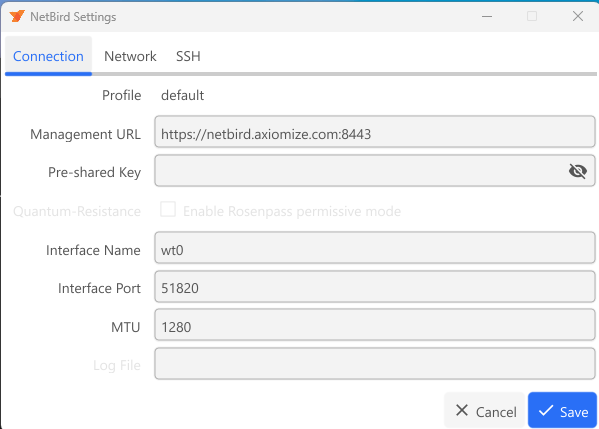
- Click the gear icon → Settings.
- Under the Connection tab, set Management URL to
https://netbird.axiomize.com:8443(the default points elsewhere). - Click Save, then close Settings and click Connect.
Linux
Follow the official Linux install guide at docs.netbird.io/get-started/install/linux. The one-liner for Debian/Ubuntu:
curl -fsSL https://pkgs.netbird.io/install.sh | sudo bashStep 2 — Trust the Axiomize internal CA
Internal services (Keycloak, OpenBao, Grafana) use TLS certificates issued by our internal certificate authority. Installing these two CA files into your operating system’s trust store is what lets your browser and CLI tools validate them as legitimate.
macOS
- Open Keychain Access.
- File → Import Items → select both
.crtfiles. - For each: double-click → expand Trust → set When using this certificate to Always Trust.
Windows
Easiest via PowerShell as administrator:
Import-Certificate -FilePath axiomize-internal-root.crt `
  -CertStoreLocation Cert:\LocalMachine\Root
Import-Certificate -FilePath axiomize-internal-intermediate.crt `
  -CertStoreLocation Cert:\LocalMachine\CA
Or via the GUI: certlm.msc as administrator, install root into Trusted Root Certification Authorities and intermediate into Intermediate Certification Authorities.
Linux (Debian/Ubuntu)
sudo cp axiomize-internal-root.crt axiomize-internal-intermediate.crt \
    /usr/local/share/ca-certificates/
sudo update-ca-certificatescurl, openssl, bao) do.
Step 3 — First login
Start NetBird:
- macOS / Linux:
netbird up --management-url https://netbird.axiomize.com:8443 - Windows: if you haven’t already, click Connect in the tray app (the Management URL should already be set from Step 1).
A browser window opens to a Keycloak login page. Sign in with the username + temporary password your operator gave you. Keycloak will then walk you through, in order:
- Set a permanent password. The temporary one becomes invalid.
- Enroll TOTP. A QR code appears — scan it with your authenticator app, then type back one of the codes the app shows you.
When both are done, the browser closes. Your NetBird account has now been created, but it needs a one-time approval from an administrator before the mesh connection will complete.
Step 4 — Verify your access
Open Grafana in a browser: https://monitoring.prod.local:3000/
Click Sign in with OAuth. The browser bounces through Keycloak (your existing session covers the auth) and lands you in Grafana with read access to the dashboards.
If the page loads with no TLS warning and you see dashboards, you’re fully onboarded. Confirm with your operator out-of-band.
Step 5 (optional) — Tools for SQL log analysis
If your work includes running SQL queries against the centralized log data, install:
- bao client — github.com/openbao/openbao/releases
- AWS CLI v2 — docs.aws.amazon.com
- DuckDB — duckdb.org
Then add these to your shell rc file (required for the SeaweedFS S3 endpoint):
export AWS_REQUEST_CHECKSUM_CALCULATION=when_required
export AWS_RESPONSE_CHECKSUM_VALIDATION=when_required
The operator will share a starter query library separately.
Troubleshooting
- Browser shows a certificate warning on an internal site: Step 2 (CA trust) didn’t complete. Re-run those steps, then restart the browser fully.
netbird uphangs or shows “disconnected”: check that the NetBird daemon is running. On Windows, the tray app must show Connected.- Keycloak says “invalid credentials”: the temporary password expires the first time it’s used — if you mistyped it the first time, ask your operator to reset it.
- Anything else: contact your operator out-of-band. The operator has system-side visibility into NetBird, Keycloak, and Grafana login state.